
“Very good service.”
Delphia L McKelvey · 15 Aug 2026
Somewhere in your browser right now there's probably a tab you opened this morning and haven't looked at since. An article you'll get to. A price you meant to compare. A work document you'll need after lunch. It just sits there, patiently, while you get on with everything else.
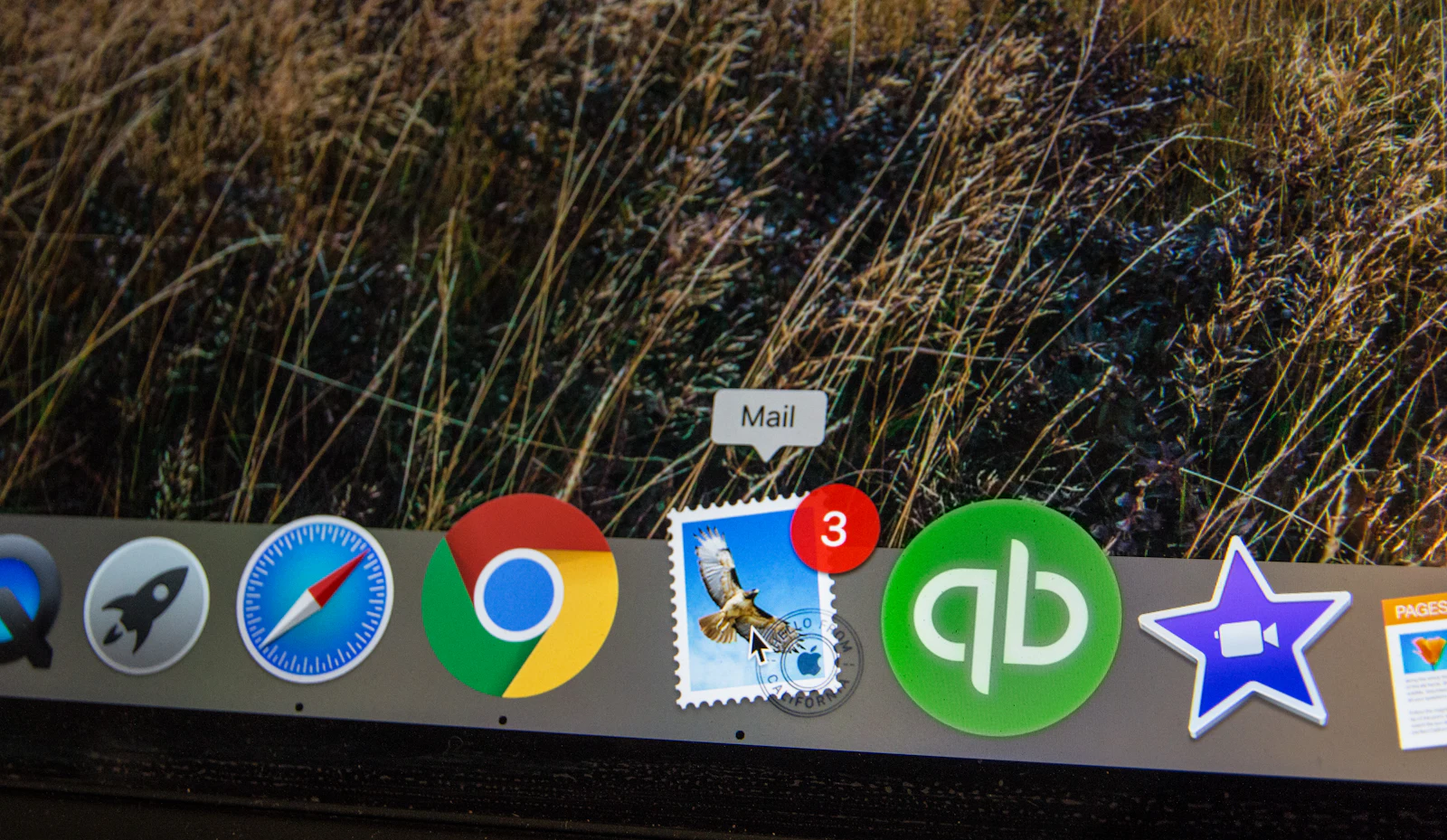
Except it isn't quite as idle as it looks.
Behind the scenes, your browser has been making decisions about that forgotten tab, quietly deciding how much attention it still deserves. Modern browsers can't afford to keep every open page running at full tilt, so many of them have learned to put unused tabs into a kind of standby. Most people never notice, until they click back to an old tab and watch it briefly reload. That small moment is the visible tip of a process worth understanding.
Tab suspension is, at heart, a resource-management trick. When a tab goes untouched for a while, the browser steps in and dials down the work that page is doing, sometimes trimming its activity, sometimes releasing parts of it from memory altogether.
The tab doesn't vanish. It stays sitting in your bar exactly where you left it, keeping its title and its place. What changes is what's happening underneath. When you return and click it, the browser reloads the page so you can pick up roughly where you were.
How aggressively this happens depends on which browser you use and what device you're on. Some are eager to suspend, others more relaxed. Either way, the feature earns its keep most obviously for the people who live with twenty or thirty tabs open at a time, the ones for whom "close some tabs" has never once been realistic advice.
Every open page asks something of your device, and not all pages ask the same amount. A plain text article is a light guest. A tab running video, live sports scores, an interactive map, or a full web application is a considerably heavier one, drawing on memory and processing power even while you're looking somewhere else entirely.
Now stack a dozen of those heavy tabs together. The browser suddenly has a lot to juggle, and the tab you're actually using has to share resources with a crowd of pages you've forgotten about. Suspension is how browsers break that tie. By easing off the inactive pages sitting in the background, they free up room for the one in front of you, keeping the active tab responsive while the rest wait quietly in reduced form.
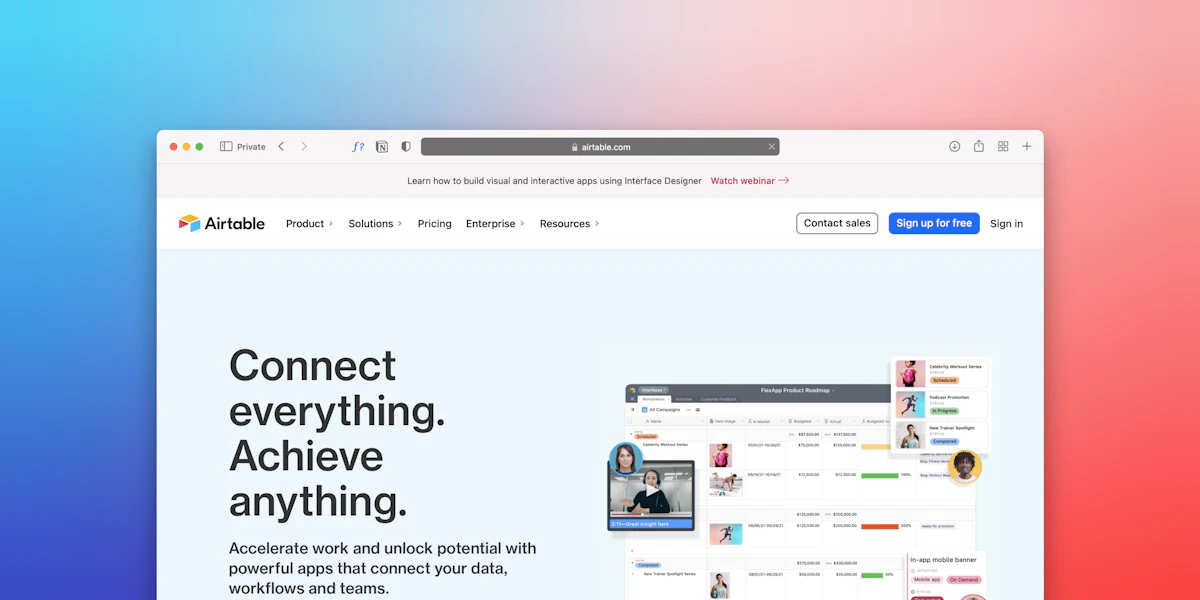
Helpful as automatic suspension is, it manages the cost of a crowded tab bar without touching the chaos of one. That part's still on you, and a few small habits go a long way.
Start with the obvious: close the pages you've genuinely finished with. For anything you'll return to, a bookmark is a far better home than a permanently open tab. Group related tabs when your browser supports it, so a whole project can travel and close together instead of scattering across the bar. And when you're hoarding articles "to read later," a reading list does that job properly, holding them somewhere retrievable rather than leaving twelve half-read pages jostling for space.
The underlying shift is a mental one. A browser works best as a workspace for what you're doing now, not as a filing cabinet for everything you might do someday.
Tidy tabs are one slice of a browser that feels good to use; the rest comes down to occasional upkeep that most of us put off indefinitely.
Keeping the browser updated matters more than it sounds, since updates carry performance improvements alongside their fixes. It's also worth a periodic look at your extensions, pulling out the ones you installed for a single task and never touched again. While you're poking around in the settings, review which sites have permission to reach your camera, location, or microphone, and revoke anything that has no business being there. Notifications deserve the same scrutiny, most of us have said "allow" to sites we'd never willingly hear from again. Clearing these out costs a few minutes and pays off in both comfort and privacy.
Here's the catch, though. You can suspend every idle tab and prune every stray extension, and a single webpage can still greet you with a wall of banners, autoplay clips, and tracking scripts the moment it loads. Organizing your browser doesn't do much about the clutter baked into the pages themselves.
That's a different problem, and it calls for a different tool. An ad blocker works on the page rather than the browser, cutting intrusive ads and limiting many of the trackers that ride along with online advertising. With that layer stripped back, a page tends to breathe, easier to read, quicker to scan, less busy when you're deep in an article or comparing products across a handful of sites. Just keep the boundary clear: an ad blocker isn't antivirus software and doesn't stand in for your browser's security measures. It complements careful habits and supports your privacy; it doesn't replace either.
If trimming that on-page clutter appeals to you, the Total Adblock Browser Extension is one option worth weighing. It's built to block intrusive ads, cut down many web trackers, and produce a cleaner experience across supported sites, the kind of difference that shows up most while you're reading, researching, shopping, or simply moving through pages that would otherwise be crowded with promotional material.
Its purpose stays deliberately narrow. The extension is about advertising and browsing comfort, not virus removal or malware defense, so it's meant to run alongside your browser updates, privacy controls, appropriate security software, and everyday online caution rather than in place of any of them. For anyone who'd rather face a simpler, less distracting web, it can be a practical addition to a daily setup.
Suspension handles the resource cost of a busy tab bar, good habits handle the mess, and an ad blocker handles the clutter sitting inside the pages themselves. Put the three together and your browser starts feeling less like a place things pile up and more like a tool that actually works for you. If you'd like to take that last step and reduce intrusive ads, limit many web trackers, and enjoy a cleaner browsing experience, the Total Adblock Browser Extension may be worth exploring.
Quoted verbatim from the public Chrome Web Store listing, which averages 3.3 out of 5. Ratings are updated daily and may not reflect the most recent reviews.
The Chrome Web Store lists 3.3 out of 5 from about 2,900 ratings, across roughly 800,000 users. Reviews are genuinely mixed — the selection below is quoted verbatim and includes both praise and criticism. Some reviewers are discussing the wider TotalAV suite rather than the extension alone.
“Very good service.”
Delphia L McKelvey · 15 Aug 2026
“Trying to get started is too bloody hard.”
Perce Harpham · 17 Aug 2026
“I AM A NEW USER AND SO FAR VERY SATISFIED ...”
JON R. GOULD · 14 Aug 2026
Each one addresses the clutter baked into a webpage — the layer tab management never reaches.
Built to block intrusive ads before they render, so the wall of banners that greets you on load never assembles in the first place.
Limits many of the trackers that ride along with online advertising — one of the categories a tidy tab bar does nothing about.
With that layer stripped back, a page tends to breathe: easier to read, quicker to scan, less busy than it would otherwise be.
The difference shows up most while you're reading, researching, shopping, or moving through pages crowded with promotional material.
It is about advertising and browsing comfort, not virus removal or malware defense — meant to run alongside your other habits, not in place of them.
What each tier covers, so you can judge whether the free version is enough for the pages you actually keep open.
$0
No cost, no trial period
$99 / year
Renews automatically until you cancel · 7-day free trial
Total Adblock Plus is listed at $99 per year on the official pricing page at the time of writing. Monthly, quarterly and biannual plans are also offered, and all plans renew automatically until you cancel. A 7-day free trial is available, and refunds may be requested within 30 days of starting an annual or biannual plan (14 days for monthly or quarterly), subject to the published terms. Prices and terms may change and vary by region — always confirm the current price on the official Total Adblock website before purchasing. This page may earn a commission from purchases made through its links.
Notes sent in after this guide was published. First names only, used with permission.
I genuinely thought the reloading tab was a bug. Knowing it is deliberate resource management changed how I think about leaving thirty tabs open.
The workspace-versus-filing-cabinet line landed. I moved about forty tabs into a reading list that same evening.
Useful to see the two problems separated. Tidying the tab bar and tidying the page turn out to need completely different tools.
Appreciated the plain statement that this is not a security tool. Most pages on the subject are much less careful about that.
Five steps, none of which need more than a minute.
Go to the Total Adblock page on the Chrome Web Store.
Confirm the permissions prompt to complete the install.
Keep the control within reach for the sites that ask you to turn it off.
While you are in the settings, pull out the ones you installed for a single task and never touched again.
Existing pages need a refresh before filtering applies to them.
The points readers most often want settled about suspended tabs and on-page clutter.
Suspension handles the resource cost. Good habits handle the mess. An ad blocker handles the clutter sitting inside the pages themselves.
This page is a paid advertorial brought to you by adscrubly.com. It is intended for promotional purposes only and should not be considered independent journalism, editorial content, or consumer advice. The content has been created or curated by the advertiser and may include affiliate links. We may receive compensation if you choose to purchase a featured product or service via the links provided. Please refer to our Advertising Disclaimer and Privacy Policy for more information.
